Edit Products
Basic information
Before you create your product we encourage you to read more about Attribute sets, product types, tax options, basic store settings and ways to manage your stock. This will help you get started with creating your first product. After reading this guide, you will be able to create your product.
The name and price of the product are necessary information for your product to be successfully saved. In addition, we suggest you enter the SKU. Enter the information at the top (image).

Products may belong to a specific category or few categories/subcategories. In the list on the right, you need to mark the one to which it belongs. Products may also belong to a particular brand which will result in that product being displayed on the brand page. Simply select a brand from a list that will display all previously saved brands. These options make it very easy for customers to search. You then choose which tax will be charged on your product (image).
Product has a short field called “Listing description” and this is the description that will be displayed below the product name on the listing page of your storefront. In order to show it there you should enable it in Settings -> Appearance.
The remaining descriptions (short and long) are shown by opening a specific product. Long description is displayed below product images on storefront while short description is displayed below product name. In the administration panel, all three descriptions are next to each other, so you need to pay attention to what you want to display.
At the end of the basic data of one product, images remain. Product images are automatically optimized for best performances. While we do keep originals we are serving optimized images to your clients. Level of optimization can be easily changed by store administrator in Settings -> Appearance -> Advanced.
Attributes / Variants
Attributes will represent filters in your store. You need to read more about attributes and their definition at the link.
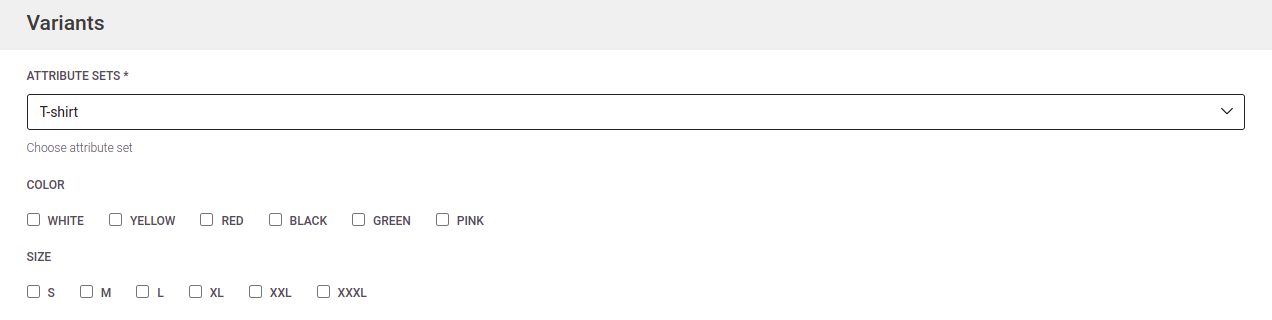
Note: In the case of a group product, you will need the Connected Products field instead of the attribute and you will need to check 2 or more products that will be included in one.
Stock & Shipping
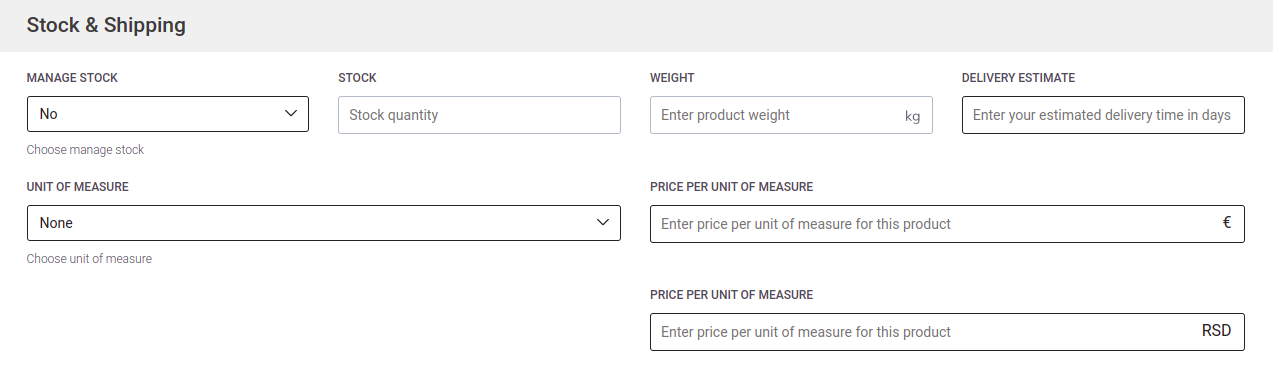
Managing product stock has never been easier. In the “Stock” section of the product edit / create page you will have the option to choose to manage stock or not manage stock. When you choose not to manage stock, the product will always be sellable. On the other hand, if you choose to manage your stock product will be available only in quantity that you have previously defined. If you choose to manage stock, product quantity will be decreased after order payment is received and you should keep an eye on your product stock in that case. One of the upcoming features is low product stock notifications.
Note for configurable products: Please keep in mind that configurable products will have available quantities defined on a child level product since those are actual physical products that you may have or may not have in stock. Note for grouped products: Grouped products do not have quantity and their quantity is calculated based on maximum number of products that you can sell, but are dependent on child product quantities and their managed stock status.
You have the ability to enter the weight of the product, which will affect the methods and cost of delivery. In addition, the estimated delivery time will be displayed below all product details. You can also enter the price of the product per unit of measure.
Promo
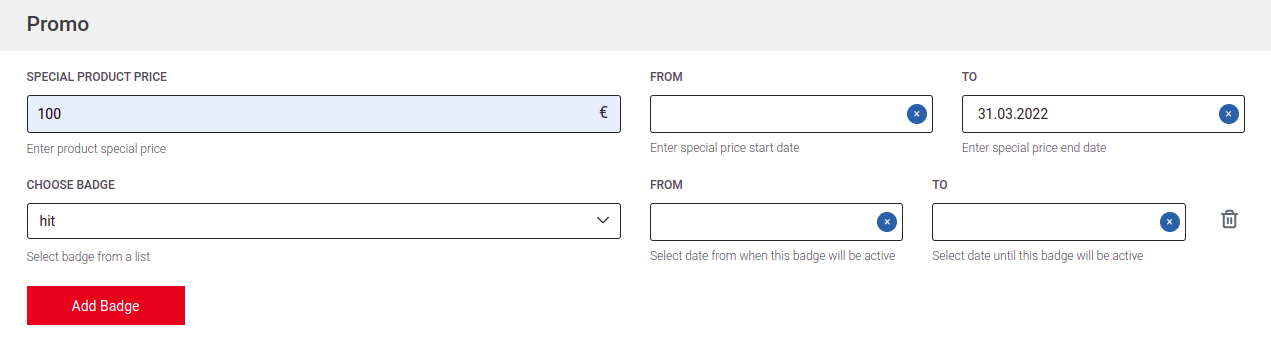
Each product can have two prices per currency. Regular price and special price. Regular price is a price that product is usually sold for. Special price is a discounted price which can be active for a specific period of time by defining “Special price from” and “Special price to”. If you do not define these dates special price will be active as long as it is present in your product settings. On the other hand if you define only “Special price from” the special price will be active from that date. If you choose to define “Special price to” special price will be active until the day that you have defined. If you define both dates, the special price will be active only between those two dates. In order to use special price it is mandatory to have the field “Special price” filled otherwise defining dates will not affect product pricing.
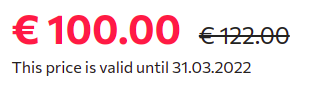
In addition to the promotional price, in this section you choose the badge that will be displayed on the desired product, which gives the possibility to come to the fore.

You enter the listed promotions in the same section, which is shown below, but they are completely independent of each other.
Cross Products
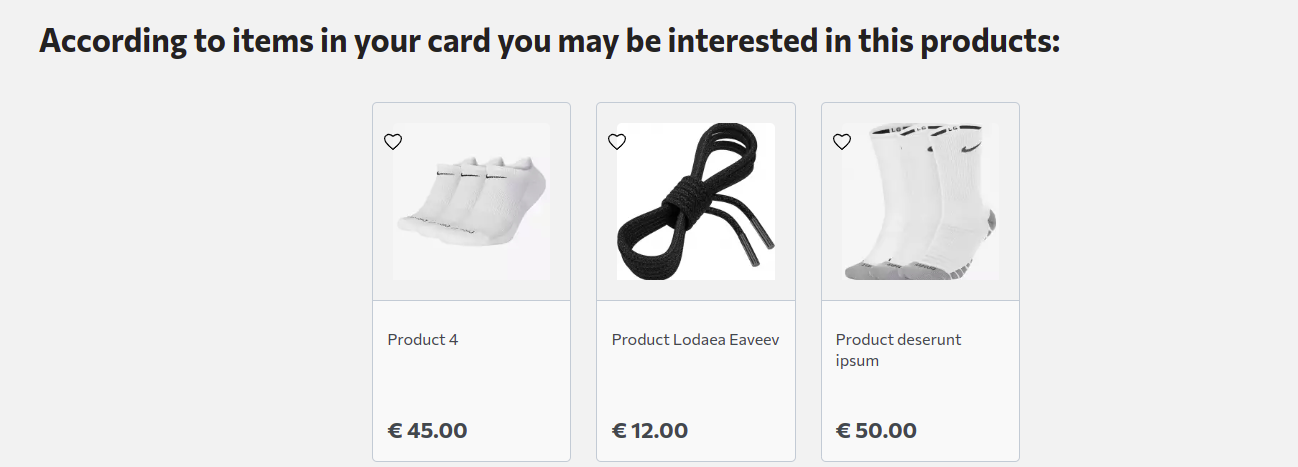
Cross merchandising is the retail practice of marketing or displaying products from different categories together, in order to generate additional revenue for the store, sometimes also known as add-on sales, incremental purchase or secondary product placement.
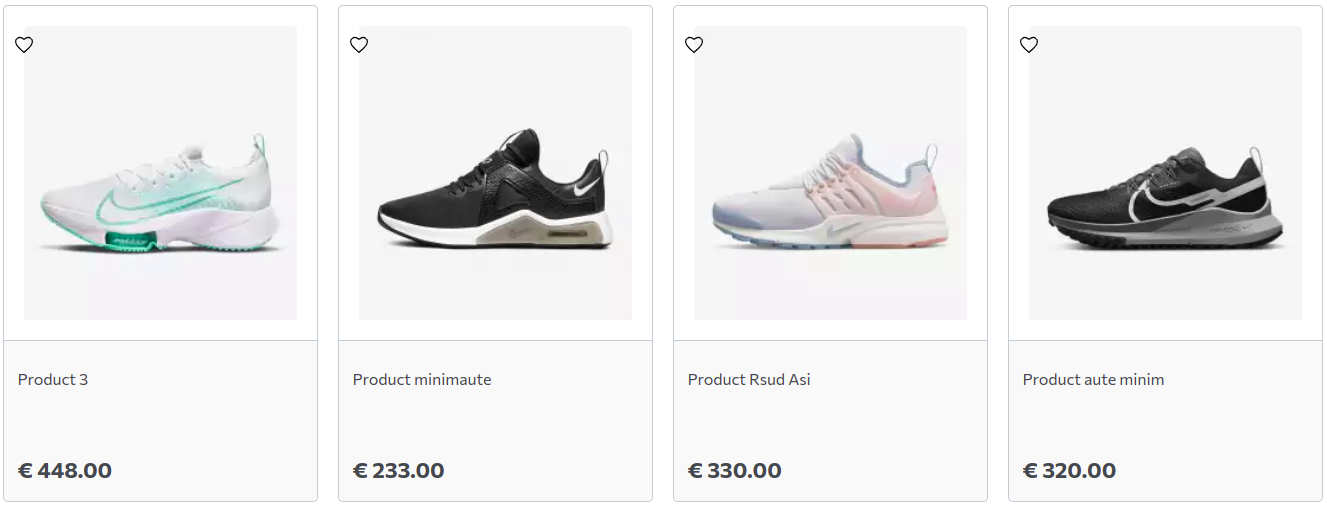
If the customer has sneakers in the cart, he can have cross products in the basket as in the example.
Related Products
There are products that are related to the same color, style, taste ... In this section, you need to mark the products that will be recommended to the customer when reviewing one. If he did not decide to buy the above, an offer of a similar one may influence him to stay in your store. They will be displayed below the product details (example).